
Getting Started with Kiflo
Welcome on board 🚀
You're ending up here because you are new to Kiflo, and want to understand how to get the best out of Kiflo? Follow these steps and you’ll get your Kiflo account up and running in no time.
Steps to successfully setting up Kiflo:
In this article
- Step 1: Define your Partner Programs
- Step 2: Invite Partners
- Step 3: Define what partners can view and action
- Step 4: Share Content with your Partners
- Step 5: Customize your Lead/Deal Forms
- Step 6: Customize your Partner Onboarding
- Step 7: Set up your Email Sending Domain and Customize Email Templates
- Step 8: Customize Properties & Stages
- Step 9: Integrations
- Next Steps
Step 1: Define your Partner Programs
Partner programs are used to segment partners. You need to define at least one program before adding the first partner in Kiflo.
Defining a partner program allows you to:
- Segment partners (e.g.: group all reseller partners in the same program)
- Define Tiers per Program
- List the benefits & requirements for those partners
- Set up your commission structure (create rewards)
- Customize the features available on the partner portal for all the partners in the same program
See: How to create a partner program?
Step 2: Invite Partners
Once you have everything set up, you need to know how to invite partners and how to impersonate them, so you can see how everything appears to them in the Partner Portal. The first partner you invite will be a test partner, allowing you to test everything before inviting one of your Actual Partners.
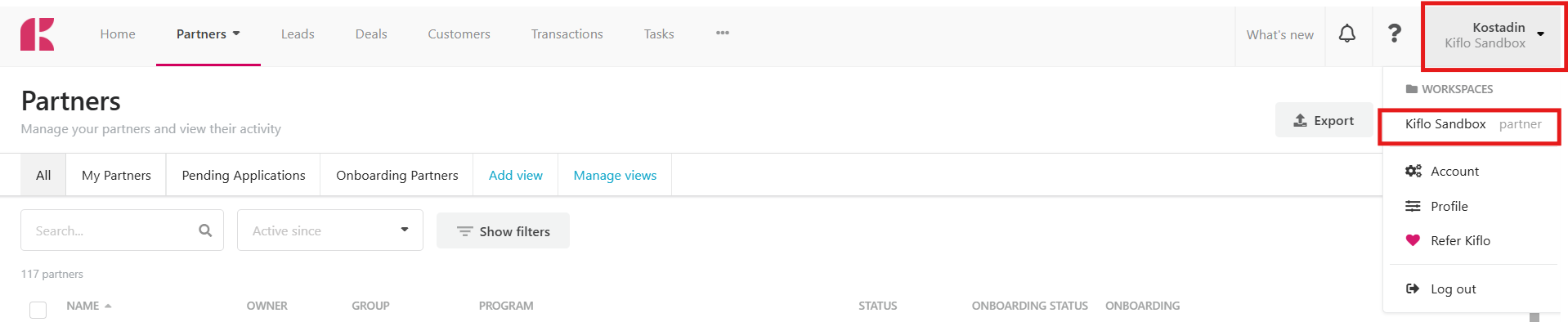
The test partner that you create needs to be associated with your email address, so you can have easy access between the Admin page and the Partner Portal while you are setting up and testing everything in Kiflo. Once you have created a test partner with your email address, you will be able to navigate to the Partner Portal from the Account tab in the top right corner.

See:
- How to invite partners?
- How to grant yourself access to the partner portal (to view what your partners see)?
- How to impersonate partners?
Step 3: Define what partners can view and action
You can customize, per partner program, what your partners that are a part of that program will see and perform when they access the Partner Portal.
See: How to customize Partner Program settings?
Step 4: Share Content with your Partners
In Kiflo, there are multiple ways for you to share content and news with your Partners:
- Assets
- News
- Help Center
- Partner Dashboards
Assets
The first option is sharing Assets with your partners. Sharing assets is a vital part to enable and equip your partners with the tools they need to bring you deals.
These include sales collateral, marketing collateral, pricing sheets, and much more!
See: Assets
News
The second option is sharing News with your partners. Similar to assets, the news functionality allows you to communicate vital information in a timely manner with partners.
News is a widget available on the partner portal. This widget allows partners to stay connected and up-to-date on your company. The news feature on Kiflo can be used by you to communicate on blog releases, webinars, product releases, etc.

See: How to share news?
Help Center
The third option is creating Articles & Collections in the Help Center. The Help Center can be used for you to create step-by-step guides for new partners as well as best practices on how to accomplish specific tasks.
See: How to create an article?
Partner Dashboards
In addition to the above you can also create Partner Dashboards that will reflect what your partners can see when they access their Partner Portal. You can select what you want to display from the many predefined widgets that are available on Kiflo.
See: How to customize the Partner Dashboard?
Step 5: Customize your Lead/Deal Forms
It is very important to customize the form that your partners are going to use to submit leads/register deals. You can add all the information you need to gather from partners so you can qualify and approve incoming leads/deals
See:
Step 6: Customize your Partner Onboarding
In Kiflo, you can customize what stages and actions Partners will need to move through and complete to be considered onboarded and active.
See: Partner Onboarding
Step 7: Set up your Email Sending Domain and Customize Email Templates
It is important to have your Email Domain set up so that when you have live partners, and they start receiving emails from Kiflo, emails are sent from your company's domain, not Kiflo's domain.
In addition to that, customizing your Email Templates for various use cases (inviting new partners, acknowledging received leads, etc) allows you to adapt the way you communicate with partners.
You can also set up for your partners to automatically receive an email whenever they submit a lead or register a deal.
See:
- How to configure your email sending domain?
- How to customize email templates?
- How to set up acknowledgment for Lead and Deal?
Step 8: Customize Properties & Stages
As you do with your CRM, you can customize Kiflo’s properties (data model) and deal stages to adapt Kiflo to your process and way of working.
See:
Step 9: Integrations
Integrations are an essential part of how Kiflo works and help you streamline everything.
The most essential piece of integration is your CRM. By connecting your CRM you will make sure that information coming from partners (leads, deals, notes, etc) is shared with your internal sales team.
Kiflo has a native integration with HubSpot and Salesforce, and other CRM systems can be connected using our API or Zapier.
See: Hubspot, Salesforce
You can also integrate your Payment platform, Website, Chat Apps, and much more.
See: Kiflo Integrations
Next Steps
Based on the type of partners you work with, please visit one of the following articles to complete your Kiflo setup: