
How to import your accounts from HubSpot?
Instead of uploading a CSV, you can connect a HubSpot list and let Kiflo import its companies or contacts as accounts. The data source is refreshed automatically every day, so your accounts stay in sync with HubSpot without any manual upload.
Prerequisites
- You must have role Owner or Admin.
- The HubSpot integration must be connected on your Kiflo account.
- You need at least one HubSpot list (static or dynamic) containing the companies or contacts you want to import.
Adding a HubSpot data source
From Account Mapping → Data sources, click Add data source and select Connect HubSpot. (The same button is also on the Accounts page.)
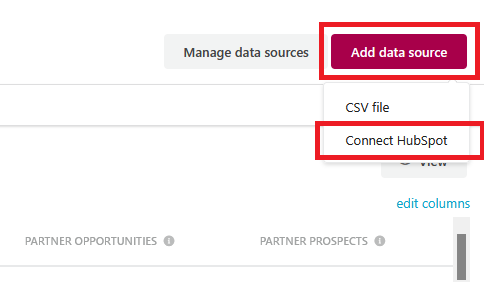
If Connect HubSpot is greyed out, hover it to see why:
- Connect HubSpot first means the integration is not connected yet. Go to your integration settings to connect it.
- Reconnect HubSpot means the integration is connected but Kiflo is missing the permission to read your HubSpot lists. Reconnect the integration to grant it.
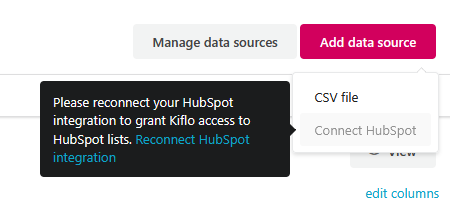
In the Add HubSpot data source panel:
- Object type: choose Company or Contact. This determines which HubSpot lists you can pick from.
- HubSpot list: search and select the list whose members you want to import. Both static and dynamic lists are available.
- Name: pre-filled with the list name. Change it if you want a different name in Kiflo.
- Account type: choose Prospect, Opportunity, or Customer. It applies to every account imported by this data source.
- Click Add (disabled until an object type and a list are selected).
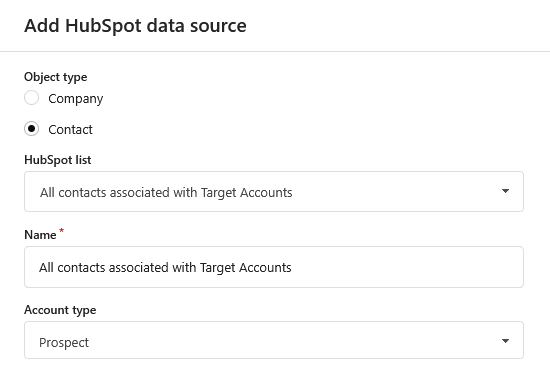
Kiflo then imports the members of the list as accounts and starts detecting overlaps with your partners' accounts. The data source shows the HubSpot type with the object type underneath (for example, HubSpot / Contacts).
What Kiflo imports from HubSpot
The field mapping is fixed, so there is nothing to configure:
| Account field in Kiflo | From a Company list | From a Contact list |
|---|---|---|
| Name | Company name | First name and last name (or the email if both are empty) |
| Website | Website | Website |
| Country | Country | Country |
| Owner name and owner email | The HubSpot owner of the record | The HubSpot owner of the record |
A record that has no usable name is skipped. If the owner cannot be resolved, the account is still imported with empty owner fields.
Keeping the data source up to date
Kiflo refreshes every enabled HubSpot data source once a day. On each refresh:
- Records that joined the list become new accounts.
- Records already imported are updated with their latest HubSpot values.
- Records that left the list, or that were deleted in HubSpot, have their accounts removed.
The refresh frequency is not configurable, and there is no manual re-sync button. You do not need to do anything to keep the data source current.
Changing the list or the object type
Open the data source, then click Update to change the Object type, the HubSpot list, or the Account type.
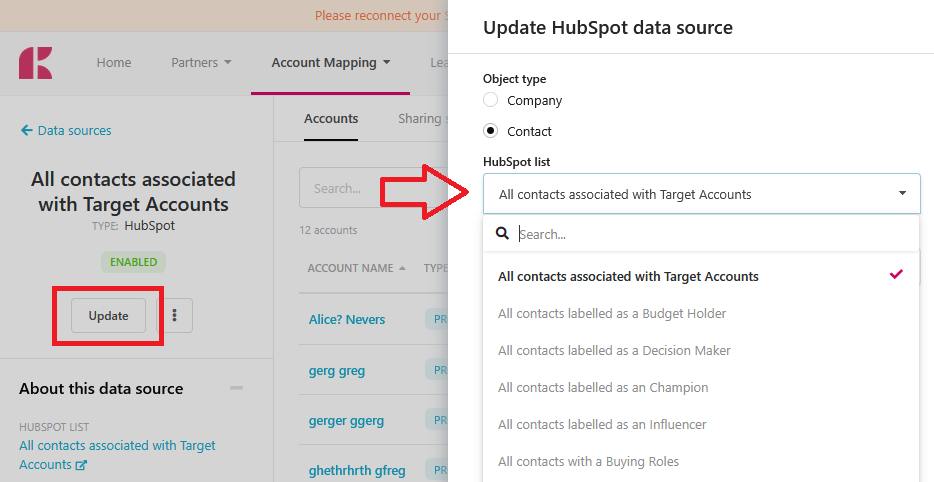
Saving the change re-imports the data source immediately against the new selection, following the same rules as the daily refresh. Accounts whose record is not in the new list are removed.
From the More menu you can also Rename the data source or Delete it. Deleting removes the accounts it imported and their overlaps.
Sharing the imported accounts
Open the Sharing settings tab of the data source to control which partners these accounts are compared against. HubSpot data sources are shared exactly like CSV ones. See How to manage sharing settings for a data source?.