
How to start and manage a collaboration with a partner?
When you find an overlapping account, you can turn it into a collaboration to:
- Ask for a warm intro for a prospect you are targeting
- Start co-selling an open opportunity
- Share a new business opportunity with the partner
This article explains how to create and manage collaborations.
Prerequisites
- You must have at least one detected overlap. See How to find and understand account overlaps?.
What is a collaboration?
A collaboration represents a shared engagement between you and a partner on a specific overlapping account. It gives you a dedicated place to record notes, schedule meetings, assign tasks, and keep attachments as you work the opportunity together.
Starting a collaboration from an overlap
Collaborations are created from an overlap, so you always start from the overlaps you and a partner share:
- Open the partner from the Partners page
- Select the Account Mapping tab
- Then the Overlaps sub-tab. (You can also reach overlaps by clicking an overlap count anywhere in Account Mapping.)
- Find the overlapping account you want to work on
- Start a collaboration from that overlap:
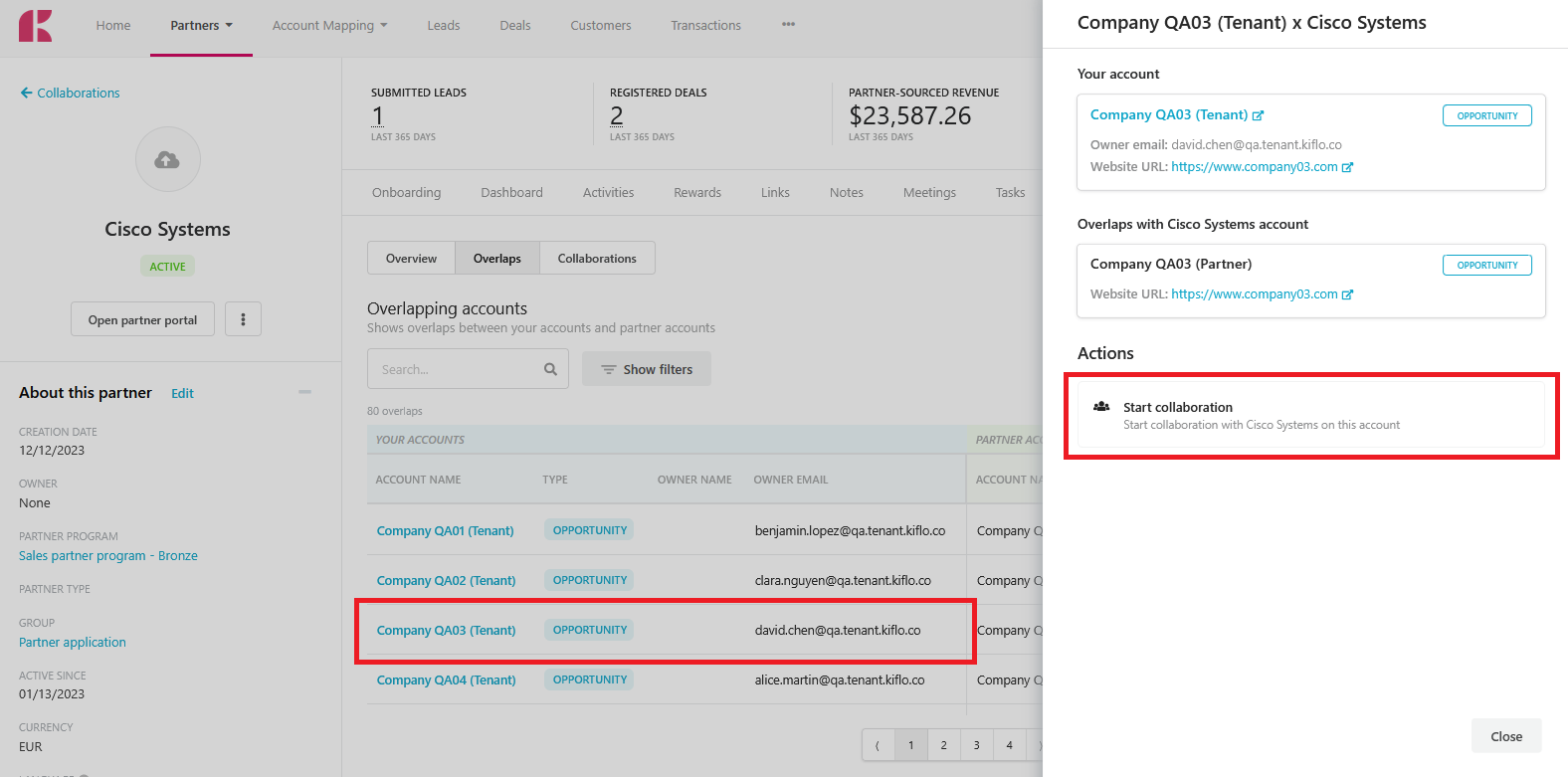
Once created, the collaboration is named after the account and partner it links.
Managing a collaboration
Open a collaboration to see its detail page.
From the detail page you can:
- Review the About this collaboration panel: the Owner, the Partner, the Assigned contact, the linked Account, and the creation and last-activity dates. Use Edit to update these details.
- Add Notes to capture context and leave comments for your team.
- Track Meetings and Tasks related to the collaboration.
- Keep relevant files under Attachments.
Deleting a collaboration
To remove a collaboration, open it and click the Delete button. Deleting a collaboration does not delete the underlying accounts or the detected overlap.
Finding all your collaborations
Recent collaboration activity appears in the Recent collaboration updates section of the Account Mapping overview dashboard, and each partner's collaborations are listed on the Collaborations sub-tab of their Account Mapping tab.