
Fathom
Connect Fathom to Kiflo to save each call you record as a note on the partners, leads and deals you met with, so your whole team can find what was said without leaving Kiflo.
Prerequisites
- This feature is only available on the Plus and Premier plans.
- You need a Fathom account that records your calls.
What the integration does
A few minutes after Fathom saves a new recording, Kiflo creates a note on each partner, lead and deal whose email matches an invitee of the call (a partner team member, the lead, or the deal's contact). Your coworkers are never matched.
The note holds the call's title, date and recording link, plus the summary, action items and transcript you chose to save. It is private to your team, can't be edited, and isn't synced to HubSpot or Salesforce.
Add Fathom to Kiflo
To turn on the integration, follow these steps:
- Go to Manage > Integrations
- Open Fathom, in the Meetings category
- Click Add to Kiflo
- Open the Settings tab
- Click Copy next to the Webhook URL
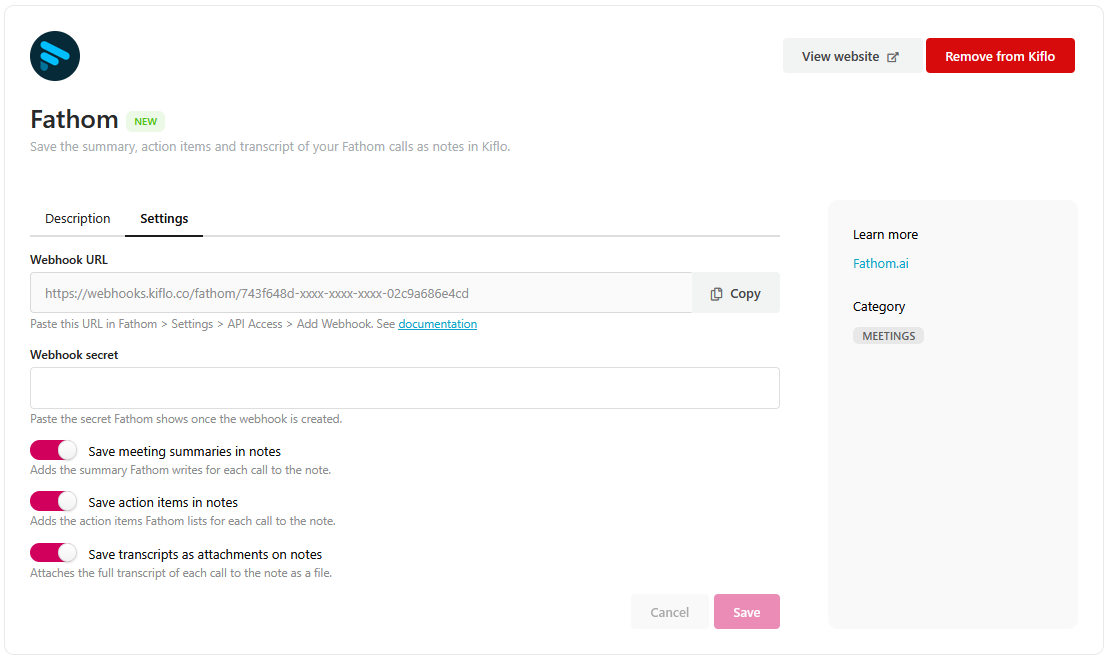
Keep this tab open: you'll come back to paste the webhook secret.
Create the webhook in Fathom
In Fathom, you first create an API key, then add a webhook to it. Official documentation: Fathom webhooks
To create the webhook, follow these steps:
- Click Settings in the top menu, then scroll to the API Access section
- Click Add, then Generate Api Key
- Back in API Access, click Manage next to your new API key
- Click Add Webhook
- In Destination URL, paste the webhook URL you copied from Kiflo
- Under Scopes, choose the recordings that should be sent to Kiflo. My Recordings sends the calls you record yourself.
- Under Events, turn on Transcript, Action items and Summary. Kiflo doesn't use CRM Matches, so you can leave it off.
- Click Create Webhook
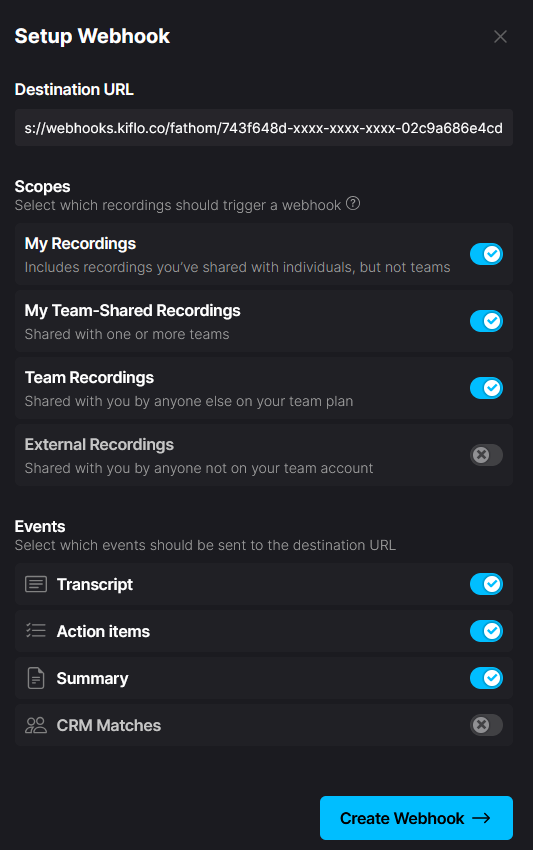
Turn on all three events
Kiflo can only save what Fathom sends. If Summary, Action items or Transcript is off in Fathom, that part is missing from the notes, even when it is turned on in Kiflo.
Save the webhook secret
Fathom signs every call it sends with a secret, and Kiflo ignores the calls it can't verify. To save the secret, follow these steps:
- On the page of your API key in Fathom, click the copy button next to Webhook Secret
- In Kiflo, go back to the Settings tab of the Fathom integration
- Paste the secret in Webhook secret
- Click Save
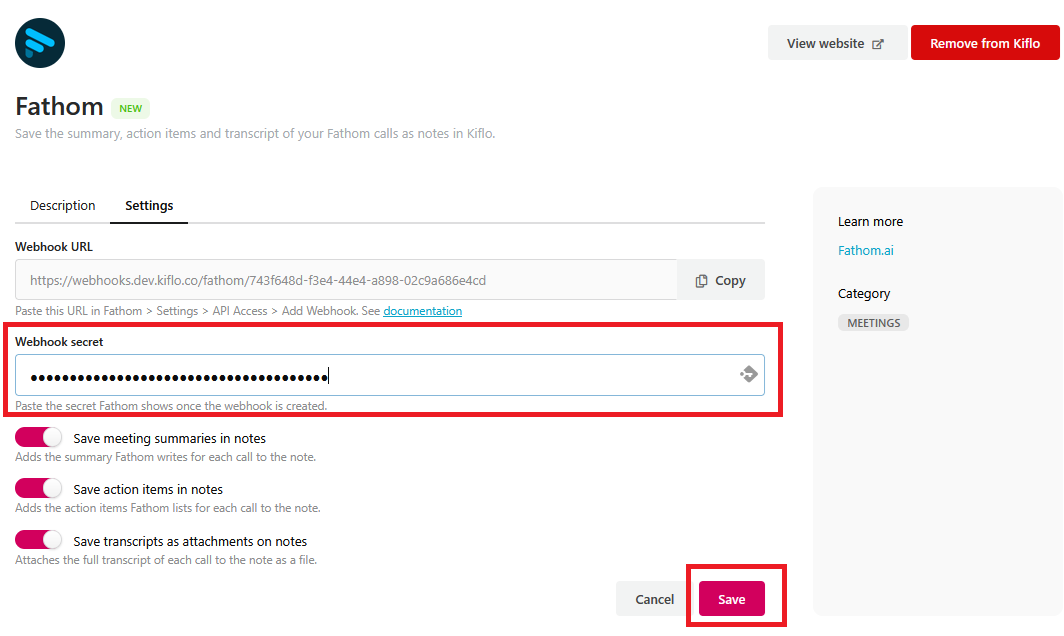
Once saved, the secret is never shown again: the field stays empty with a masked placeholder. To replace it, paste the new secret and click Save. Leaving the field empty keeps the saved secret.
Choose what goes in the notes
On the Settings tab, choose what Kiflo saves for each call, then click Save:
- Save meeting summaries in notes: adds the summary Fathom writes for the call to the note
- Save action items in notes: adds the action items Fathom lists for the call to the note
- Save transcripts as attachments on notes: attaches the full transcript of the call to the note as a file
All three are on when you add Fathom to Kiflo. If you turn them all off, Kiflo stops creating notes.
Troubleshooting
If no note shows up after a recorded call, check that:
- the webhook secret is saved in Kiflo and comes from the same API key as the webhook
- the call had at least one invitee whose email matches a partner team member, a lead or a deal contact in Kiflo
- the webhook scopes in Fathom cover the recording, for example a call recorded by a coworker
- at least one of the three toggles is on in Kiflo
To stop creating notes, click Remove from Kiflo on the Fathom integration, and delete the webhook in Fathom.
If you're still stuck, please reach out to us at help@kiflo.com, we'll be happy to help.